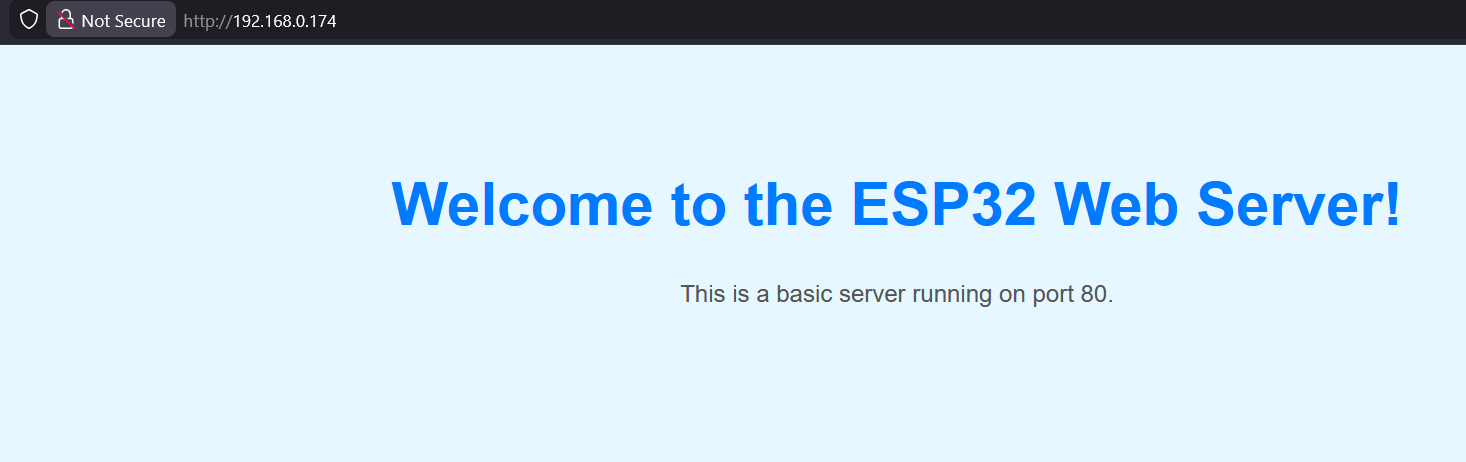
Now you’ve got a basic interface working on the board its time to do something more interesting, lets run a web server on the board, this could be used to extend in the future and control parts of the board using the web server as an interface, we will start with an unsecured site as this is much simpler and avoids the need for certificates.
To start open the Arduino IDE and paste in this code, you can then compile and upload to your device following the instructions used in the previous article.
// Imports the required components to control the wifi chip onboard the device
#include <WiFi.h>
// Imports the webserver component to allow you to display things in a browser
#include <WebServer.h>

// --- Configuration Settings ---
// !!! CRITICAL: UPDATE THESE WITH YOUR NETWORK DETAILS !!!
const char* ssid = "YOUR_SSID";
const char* password = "YOUR_PASSWORD";

// Create a WebServer object on port 80 (standard HTTP port)
WebServer server(80);

// --- Handler Function ---

// Function to handle the root URL ("/") request
void handleRoot() {
  // HTML content for the welcome message, the += just adds the next line to the string, you could have it as one bring string if you prefer but this helps readability.
  String html = "<!DOCTYPE html><html>";
  html += "<head><meta name='viewport' content='width=device-width, initial-scale=1'>";
  html += "<title>ESP32 Welcome</title>";
  html += "<style>";
  html += "body { font-family: sans-serif; text-align: center; margin-top: 100px; background-color: #e6f7ff; }";
  html += "h1 { color: #007bff; font-size: 3em; }";
  html += "p { color: #555; font-size: 1.2em; }";
  html += "</style></head>";

  html += "<body>";
  html += "<h1>Welcome to the ESP32 Web Server!</h1>";
  html += "<p>This is a basic server running on port 80.</p>";
  html += "</body></html>";

  // Send the HTML response with status code 200 (OK)
  server.send(200, "text/html", html);
}

// If you try to go anywhere but the home page i.e /admin this will return a 404 error back to the browser.
void handleNotFound() {
  server.send(404, "text/plain", "404: Not Found");
}

// --- Setup  ---

void setup() {
  // Start serial communication for debugging at baud 115200
  Serial.begin(115200);

  // Connect to the Wi-Fi you specified above
  Serial.print("Attempting to connect to SSID: ");
  Serial.println(ssid);

  // Start the connection process and authenticate using your password
  WiFi.begin(ssid, password);

  // Wait for connection to succeed (blocks everything else until connected)
  while (WiFi.status() != WL_CONNECTED) {
    delay(500);
    Serial.print(".");
  }

  // Connection successful!
  // Print out details to the serial console so you know what the IP is.
  Serial.println("\nWiFi connected successfully!");
  Serial.print("Server IP address: ");
  // Print the IP address to the Serial Monitor so you know where to navigate
  Serial.println(WiFi.localIP());

  // Configure Web Server Routes, in this case just / and everything else.
  server.on("/", handleRoot);       // Map the root path to handleRoot function
  server.onNotFound(handleNotFound); // Map any other path to 404 handler

  // Start the web server
  server.begin();
  Serial.println("HTTP server started on port 80.");
}

void loop() {
  // CRITICAL: Must be called repeatedly to process incoming client requests
  server.handleClient();

  // Allows the Wi-Fi and FreeRTOS tasks time to run, improving responsiveness, not using all CPU for the web server
  delay(1);
}
If you now browse to the the IP shown in your console you will see a simple welcome page.
This is a great start but we can do better, the next step is to display the options we will need to control the onboard LED, lets update the webserver to include our graphical components, change your handleRoot function to match the below.
void handleRoot() {
  // HTML content for the welcome message
 String html = "<!DOCTYPE html><html>";
  html += "<head><meta name='viewport' content='width=device-width, initial-scale=1'>";
  html += "<title>ESP32-C3 LED Control</title>";
  html += "<style>";
  html += "body { font-family: sans-serif; text-align: center; margin-top: 50px; background-color: #f4f4f9; }";
  html += ".card { background-color: #ffffff; padding: 30px; border-radius: 12px; box-shadow: 0 4px 12px rgba(0, 0, 0, 0.1); display: inline-block; }";
  html += "h1 { color: #333; }";
  html += ".status { padding: 10px; border-radius: 6px; font-weight: bold; margin: 20px 0; font-size: 1.2em; }";
  html += ".on { background-color: #d4edda; color: #155724; border: 1px solid #c3e6cb; }";
  html += ".off { background-color: #f8d7da; color: #721c24; border: 1px solid #f5c6cb; }";
  html += ".btn { background-color: #007bff; color: white; border: none; padding: 10px 20px; text-align: center; text-decoration: none; display: inline-block; font-size: 16px; margin: 4px 2px; cursor: pointer; border-radius: 8px; transition: background-color 0.3s; }";
  html += ".btn:hover { background-color: #0056b3; }";
  html += "</style></head>";

  html += "<body><div class='card'>";
  html += "<h1>ESP32-C3 LED Server</h1>";


  // Buttons to control the LED referencing a function (these dont exist yet)
  html += "<p><a href='/LED_ON' class='btn'>Turn LED ON</a></p>";
  html += "<p><a href='/LED_OFF' class='btn'>Turn LED OFF</a></p>";

  // Close off the tags so it renders properly
  html += "</div></body></html>";

  // Send the HTML response with status code 200 (OK)
  server.send(200, "text/html", html);
}
This is a great start, now one final step is adding in the control parts for the LED and moving things around to make it extendable in the future.
Add the GPIO definition and initial state just below your WIFI SSID and password
1
2
3
4
5
6
// Define the GPIO pin for the onboard LED on the ESP32-C3
#define ledPin 8

// Initial state set to LOW (on)
int ledState = LOW;
Now add in the two functions to turn the light on and off just below the handleRoot function and above the handleNotFound function
We also of course need to add the extra routes next to the “/“ and onNotFound routes
1
2
server.on("/LED_ON", handleLedOn); // Map /LED_ON to handleLedOn function
server.on("/LED_OFF", handleLedOff); // Map /LED_OFF to handleLedOff function
Add these two lines below the serial.begin line in the setup function
1
2
3
4
//sets the PIN to OUTPUT mode
pinMode(ledPin, OUTPUT);
// This line now initializes the physical pin to HIGH
digitalWrite(ledPin, ledState);
// Define the GPIO pin for the onboard LED on the ESP32-C3 const int ledPin = 8;
// Create a WebServer object on port 80 (standard HTTP port) WebServer server(80);
// Global state variables // Initial state set to LOW (on) int ledState = LOW; bool serverRunning = false; // Tracks if the web server has been successfully started
// --- HTML Content Generation ---
// Function to generate the HTML webpage with status and buttons String getHtmlPage() { String html = "<!DOCTYPE html><html>"; html += "<head><meta name='viewport' content='width=device-width, initial-scale=1'>"; html += "<title>ESP32-C3 LED Control</title>"; html += "<style>"; html += "body { font-family: sans-serif; text-align: center; margin-top: 50px; background-color: #f4f4f9; }"; html += ".card { background-color: #ffffff; padding: 30px; border-radius: 12px; box-shadow: 0 4px 12px rgba(0, 0, 0, 0.1); display: inline-block; }"; html += "h1 { color: #333; }"; html += ".status { padding: 10px; border-radius: 6px; font-weight: bold; margin: 20px 0; font-size: 1.2em; }"; html += ".on { background-color: #d4edda; color: #155724; border: 1px solid #c3e6cb; }"; html += ".off { background-color: #f8d7da; color: #721c24; border: 1px solid #f5c6cb; }"; html += ".btn { background-color: #007bff; color: white; border: none; padding: 10px 20px; text-align: center; text-decoration: none; display: inline-block; font-size: 16px; margin: 4px 2px; cursor: pointer; border-radius: 8px; transition: background-color 0.3s; }"; html += ".btn:hover { background-color: #0056b3; }"; html += "</style></head>";
html += "<body><div class='card'>"; html += "<h1>ESP32-C3 LED Server</h1>";
// Display current LED status if (ledState == LOW) { html += "<p class='status on'>LED Status: ON</p>"; } else { html += "<p class='status off'>LED Status: OFF</p>"; }
// Buttons to control the LED html += "<p><a href='/LED_ON' class='btn'>Turn LED ON</a></p>"; html += "<p><a href='/LED_OFF' class='btn'>Turn LED OFF</a></p>";
void handleLedOn() { ledState = LOW; digitalWrite(ledPin, ledState); // 303 Redirect to the root page to show the new status server.sendHeader("Location", "/"); server.send(303); }
void handleLedOff() { ledState = HIGH; digitalWrite(ledPin, ledState); // 303 Redirect to the root page to show the new status server.sendHeader("Location", "/"); server.send(303); }
void handleNotFound() { server.send(404, "text/plain", "404: Not Found"); }
// --- Reconnection Logic ---
// Function to check and handle Wi-Fi connection status and start/stop server void handleWiFi() { // Check if Wi-Fi is NOT connected if (WiFi.status() != WL_CONNECTED) { // If the server was running, stop it first if (serverRunning) { serverRunning = false; Serial.println("WiFi lost. Web server stopped."); }
// Attempt reconnection static unsigned long lastAttempt = 0; // Only attempt to reconnect every 10 seconds to avoid flooding if (millis() - lastAttempt > 10000) { Serial.print("Reconnecting..."); WiFi.reconnect(); lastAttempt = millis(); }
} else { // Wi-Fi IS connected if (!serverRunning) { // If server is not running, start it
// Configure Server Routes (needs to be done before server.begin) server.on("/", handleRoot); // *** CRITICAL ADDITION: REGISTERING LED CONTROL ROUTES *** server.on("/LED_ON", handleLedOn); server.on("/LED_OFF", handleLedOff); // ******************************************************** server.onNotFound(handleNotFound);
server.begin(); serverRunning = true; Serial.println("\nWiFi connected."); Serial.print("Web Server IP address: "); Serial.println(WiFi.localIP()); Serial.println("HTTP server started."); } } }
// --- Setup and Loop ---
void setup() { Serial.begin(115200); pinMode(ledPin, OUTPUT); // Initialize the physical pin state digitalWrite(ledPin, ledState);
// Start the initial connection attempt. WiFi.begin(ssid, password); Serial.print("Initial connection attempt started for: "); Serial.println(ssid); }
void loop() { // 1. Manage Wi-Fi connection and server state handleWiFi();
// 2. Handle client requests ONLY if the server is running if (serverRunning) { server.handleClient(); } }